BIOS/UEFI Flashback Explained: Updating a Motherboard Without a CPU Installed
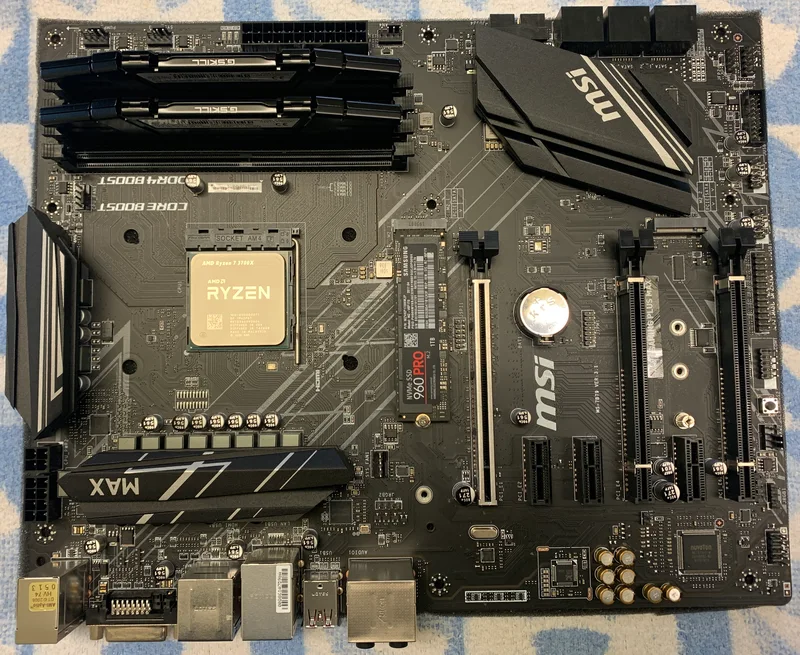
Buy a new CPU, drop it into a motherboard that shipped a year or two earlier, and there's a real chance the system won't even POST — not because anything is broken, but because the board's BIOS predates support for that specific chip. This exact scenario has become common enough on both AMD and Intel platforms that every major motherboard vendor now builds a way to update the BIOS without a working CPU, RAM, or GPU in the system at all. Here's how BIOS/UEFI Flashback actually works, and when you genuinely need it.
The Problem It Solves
A motherboard's BIOS ships with a fixed list of CPU microcodes it recognizes at launch. When a new CPU generation launches on the same socket months or years later — new Ryzen chips on an existing AM5 board, for instance — older boards need a BIOS update before they'll even recognize the new chip enough to boot. Under normal circumstances, updating BIOS requires booting into the existing operating system or BIOS interface, which obviously requires a working, recognized CPU already installed. That's the chicken-and-egg problem Flashback solves: a way to write a new BIOS image directly to the board's firmware chip using nothing but standby power from the PSU, without ever needing to boot into an OS or even POST with the old CPU first.
How It Actually Works
Every implementation follows the same basic mechanism, even though vendor names differ. You format a USB flash drive as FAT32, download the correct BIOS file for your exact motherboard model and revision, and rename that file to a specific filename the board expects (this varies by vendor and model — check your manual, since using the wrong filename means the board simply won't recognize the file). You then plug that drive into a specifically labeled USB port on the rear I/O — not just any USB port, only the one wired directly to the Flashback controller — connect the power supply and switch it on at the PSU (the motherboard does not need to be powered on via the case power button), and press a dedicated Flashback button. An LED near the button blinks while the update is in progress and turns off (or stops blinking, depending on vendor) once it's complete, typically taking several minutes. Through this entire process, no CPU, RAM, or graphics card needs to be installed at all — the firmware chip is being written directly, bypassing the rest of the system entirely.
What Each Vendor Calls It
The feature exists under different marketing names across the four major motherboard vendors, which causes real confusion when people search for instructions using the wrong term. ASUS calls its implementation BIOS FlashBack, available on most boards from mid-range up. Gigabyte's version is branded Q-Flash Plus, and on many of their boards it runs automatically on a schedule after the button is pressed rather than requiring you to babysit it. MSI simply labels its dedicated port and button "Flash BIOS Button" on the rear I/O shield. ASRock uses "BIOS Flashback" as well, functionally similar to ASUS's implementation. Despite the different names, all four accomplish the identical underlying task, and all four require checking your specific board's manual for the exact USB port location and expected filename format, since these details are not standardized across vendors or even across different boards from the same vendor.
When You Actually Need This Feature
The most common real-world trigger is buying a new CPU generation for an existing AM5 or LGA1700 motherboard that launched before that CPU existed — a classic case covered in our AM4 vs. AM5 vs. LGA1700 platform guide, where staying on the same socket across CPU generations is the entire appeal, but only works cleanly if the board's BIOS is current. It's also the standard recovery path when a BIOS update goes wrong mid-flash (power loss, a corrupted download, or a buggy update) and the board won't POST at all afterward — without Flashback, a genuinely bricked BIOS chip on some boards requires sending it back to the manufacturer or reflashing the chip with specialized hardware. And it matters for anyone buying a used or old-stock motherboard specifically to pair with a newer CPU: checking whether that exact board revision supports Flashback, and whether a current BIOS is available for it, should happen before ordering, not after the new CPU arrives and the system won't boot.
Limitations Worth Knowing Before You Rely On It
Not every motherboard has this feature — it's common on B650/X670/B850/X870 and Z790/B760 boards from mid-range pricing upward, covered in more detail in our chipset tiers guide, but frequently absent on the cheapest entry-level boards in a given lineup, where cutting the dedicated Flashback controller chip is one of the first cost-saving measures a vendor makes. The process is also strictly one-directional recovery insurance, not a general convenience feature — it typically takes several minutes per attempt, offers no on-screen feedback beyond a blinking LED, and picking the wrong BIOS file for your exact board revision can, in rare cases, still cause problems rather than fix them. Always download BIOS files directly from the specific product page matching your board's exact model and revision number, never a generic listing for the product family.
Practical Buying Advice
If you're buying a motherboard today specifically to keep it through a future CPU upgrade — the entire value proposition of a modern AM4 or AM5 board like the MSI X470 Gaming Plus Max — confirming Flashback support before purchase is worth the extra five minutes of spec-sheet reading, especially if you plan to buy new CPU generations well after the board itself launches. Browse boards with confirmed Flashback support on our motherboard comparison page, and if you already own a board and are planning a CPU upgrade, update the BIOS to the latest version compatible with your new chip before you physically swap anything — doing it in advance with your current, working CPU still installed is simpler than needing Flashback as a recovery step afterward.
The Bottom Line
BIOS/UEFI Flashback exists specifically to break the chicken-and-egg problem of needing a working CPU to update the BIOS that makes a new CPU work in the first place. It's a genuinely useful safety net for platform longevity and BIOS-update recovery, implemented under different names by every major vendor, but it's not universal across every price tier — checking for it explicitly matters more the longer you plan to keep a motherboard across multiple CPU generations.