SSD vs. HDD in 2026: Do You Still Need a Hard Drive?
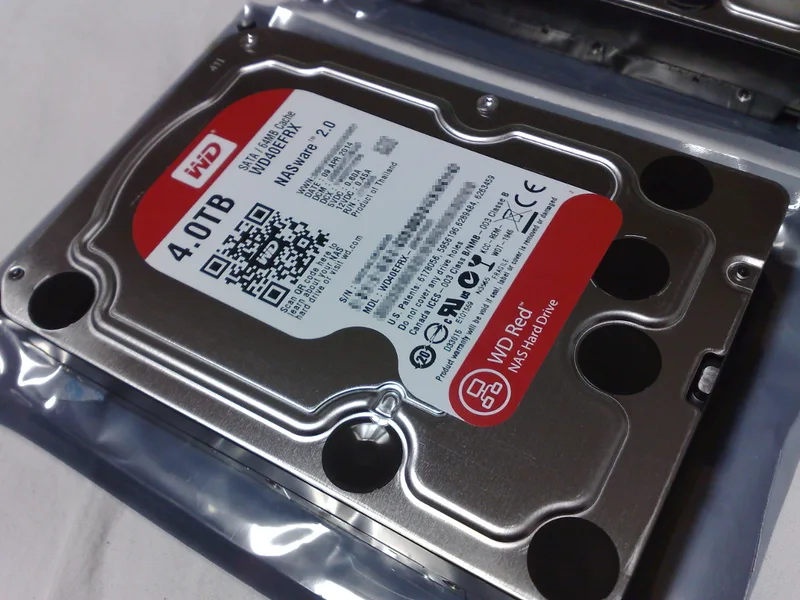
Every year someone declares the hard drive dead, and every year millions of new HDDs still ship inside NAS boxes, backup drives, and bulk storage builds. The truth in 2026 is more nuanced than "SSDs won": the two technologies have sorted themselves into genuinely different jobs, and picking the wrong one for a given role either wastes money or creates a real bottleneck. Using real products across both categories — from the blazing-fast Samsung 990 PRO NVMe SSD to the WD Red 4TB NAS hard drive — here's how to actually decide.
Where SSDs have completely won
For anything that needs to feel fast — your operating system drive, your game library, your active video editing scratch disk — NVMe SSD performance isn't just an upgrade over a hard drive, it's a different category of experience entirely. The Samsung 990 PRO pushes sequential reads up to 7,450 MB/s over PCIe 4.0, a figure no spinning hard drive can approach by more than an order of magnitude; even a budget NVMe drive like the SK hynix BC501 comfortably outruns any HDD on random access latency, which is what actually makes an operating system feel responsive during boot, app launches, and file browsing. If a drive is going to be touched constantly throughout your day, there is no longer a good argument for putting a hard drive under that workload.
Where hard drives still make complete financial sense
Cost per gigabyte is where the story flips entirely. A hard drive like the WD Red 4TB NAS drive delivers bulk capacity at a price per terabyte that flash memory still can't match, especially once you're storing multiple terabytes of photos, video archives, backups, or media libraries that don't need to be accessed at NVMe speeds. For sequential, large-file workloads — writing a backup once and reading it back occasionally, or streaming a movie file from a home media server — a hard drive's comparatively modest sequential throughput is still completely adequate, and the cost savings at multi-terabyte capacities remain substantial.
NAS and backup: hard drives built for the job
Not all hard drives are equal, and this matters more than most buyers realize. The WD Red line is specifically engineered for NAS use: rated for continuous 24/7 operation, tuned firmware for multi-drive RAID environments, and vibration tolerance for running alongside several other drives in the same enclosure. A standard desktop-class hard drive, run in that same always-on, multi-drive context, tends to wear out faster and handle vibration-induced errors worse. If you're building network storage or a backup server, spending the extra cost on a NAS-rated drive rather than a generic desktop HDD is a real reliability decision, not just marketing.
Portable and external storage: HDDs still dominate budget capacity
For external backup drives, hard drives like the Seagate Expansion Portable line remain the default choice for anyone who needs multiple terabytes of backup capacity without paying flash-drive pricing. An external SSD is faster and more shock-resistant, which matters for drives that travel constantly, but for a drive that mostly sits connected to a desktop or NAS as a backup target, the speed advantage rarely justifies the price difference when the primary job is simply holding a large volume of data safely.
Reliability and failure modes: a real trade-off, not a myth
Hard drives fail mechanically — moving parts, spinning platters, and read/write heads mean physical wear and vibration sensitivity that solid-state drives simply don't have. SSDs fail differently, through flash memory wear from write cycles, which is a non-issue for typical consumer use but worth knowing about for write-heavy workloads. Neither failure mode makes one technology categorically safer than the other; both still require real backups regardless of which storage type you choose, since any single drive can fail. The practical difference is that HDDs are more sensitive to physical shock and vibration, while SSDs are more sensitive to extreme write volumes over their lifespan.
The practical framework: match the drive to the job
The decision isn't really SSD versus HDD as a blanket choice — it's about matching drive type to role within the same system. Your boot drive and actively-used applications should be on NVMe SSD storage without exception in 2026; the performance gap is too large to justify a hard drive there anymore. Your bulk archive, backup target, and NAS capacity should lean toward hard drives, where the cost-per-terabyte advantage remains decisive. We cover picking the right NVMe drive specifically in our NVMe SSD buying guide, which pairs well with this comparison if you're planning a full storage setup across both drive types.
Endurance ratings: the spec buyers rarely check
SSDs are rated for a finite amount of total data written over their lifespan, usually expressed as TBW (terabytes written), and this figure matters far more for a drive under constant heavy write load — video capture, database servers, frequent large file transfers — than for typical desktop use, where most users would need years to approach the rated limit. Hard drives don't carry an equivalent write-endurance ceiling; their wear mechanism is almost entirely mechanical rather than write-cycle based. If you're planning a workload with genuinely heavy, continuous write activity, checking the SSD endurance rating against your expected write volume is worth the extra few minutes, since running a low-endurance consumer SSD far outside its intended write profile can shorten its usable life meaningfully.
Bottom line
Hard drives are not dead, and they won't be for as long as flash memory costs meaningfully more per gigabyte than magnetic storage — a gap that has narrowed over the years but has not closed, particularly at the multi-terabyte capacities NAS and backup users actually need. What's changed is the role they play: HDDs have retreated almost entirely to bulk capacity, backup, and NAS duty, while SSDs have taken over every workload where speed and responsiveness actually matter. A well-planned modern build typically uses both — fast flash for what you touch daily, spinning storage for what you need to keep safely and cheaply. Compare current drives across both categories in our full storage lineup before deciding how to split capacity between the two.